For independent board game cafés
Board game café software that starts with your shelves.
Bring your whole library over in one import. Guests book a table and the game they're coming for, scan the code on their table to pick from what's on the shelf, and you see the whole night on one screen.
Free while we launch · GameLedger doesn't take a commission on your bookings.
Demo café: Spinner & Scone. Game details powered by BGG.
What you use today
Your bookings, your tables and your shelf usually live in three places.
A restaurant booking tool
Sells time slots. It doesn't know which games you own.
A library app or a spreadsheet
Knows the shelf. It doesn't take bookings.
The phone and a notebook
Doesn't know your tables or your shelf.
GameLedger keeps the tables, the bookings and the games in one place.
Using a restaurant booking tool? See how they compare →01
Your whole shelf, ready for guests
Your library is the first thing GameLedger knows, and the rest builds on it.
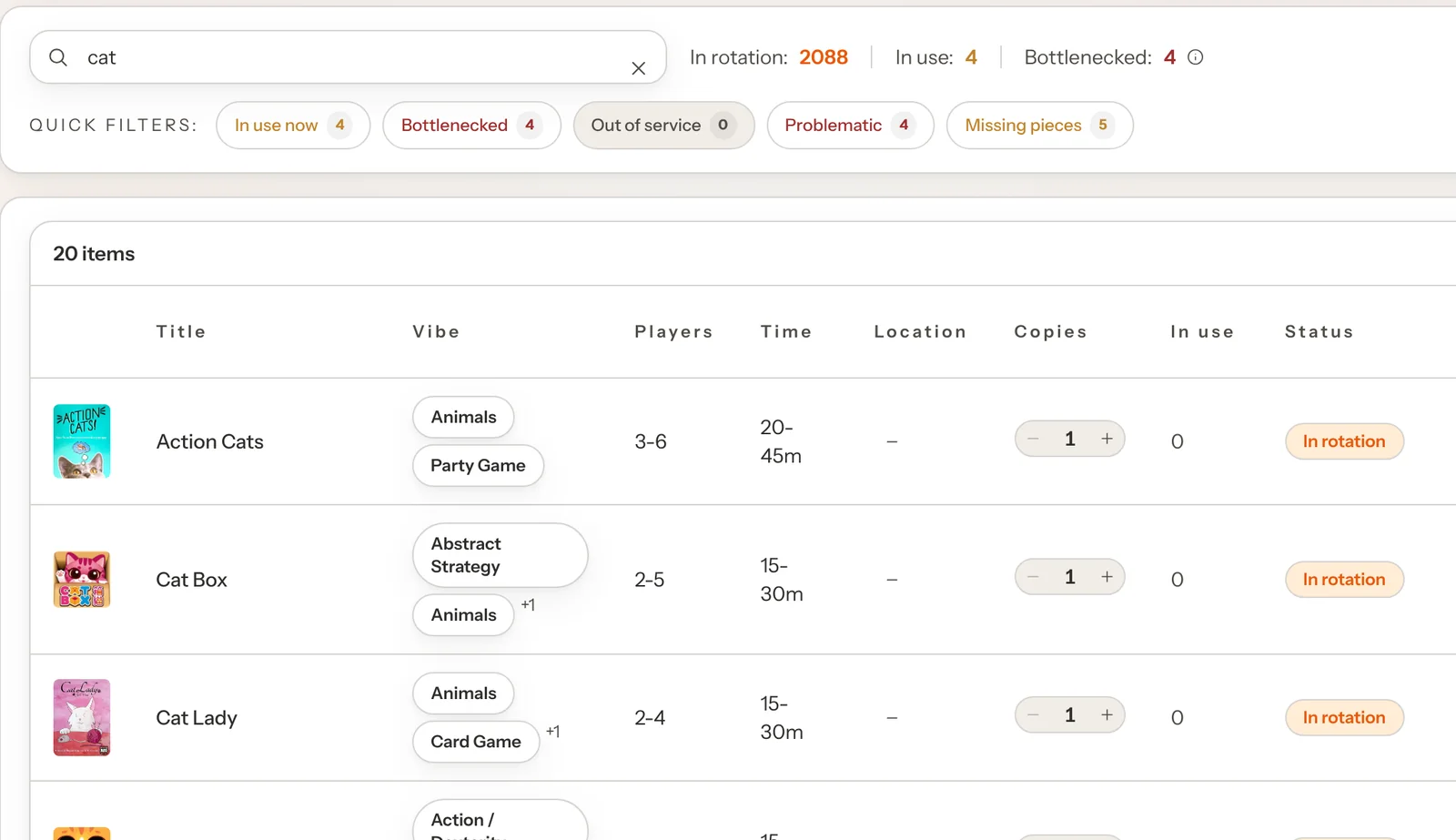
Import a spreadsheet or a BoardGameGeek collection, or search BGG one title at a time. Box art, player counts and play times fill in, and you see which titles need a second look.
Guide: Import your games from a spreadsheetGameLedger knows which copies are out at a table, so Find a Game and your Staff Picks only show games with a copy on the shelf.
Guide: Set up Find a GameGuests can flag missing pieces when they finish, and you see it on your Dashboard. A game you mark out of service leaves the picker.
Guide: Guest feedback and reviews
Demo café: Spinner & Scone. Game details powered by BGG.
02
Bookings that know your shelf
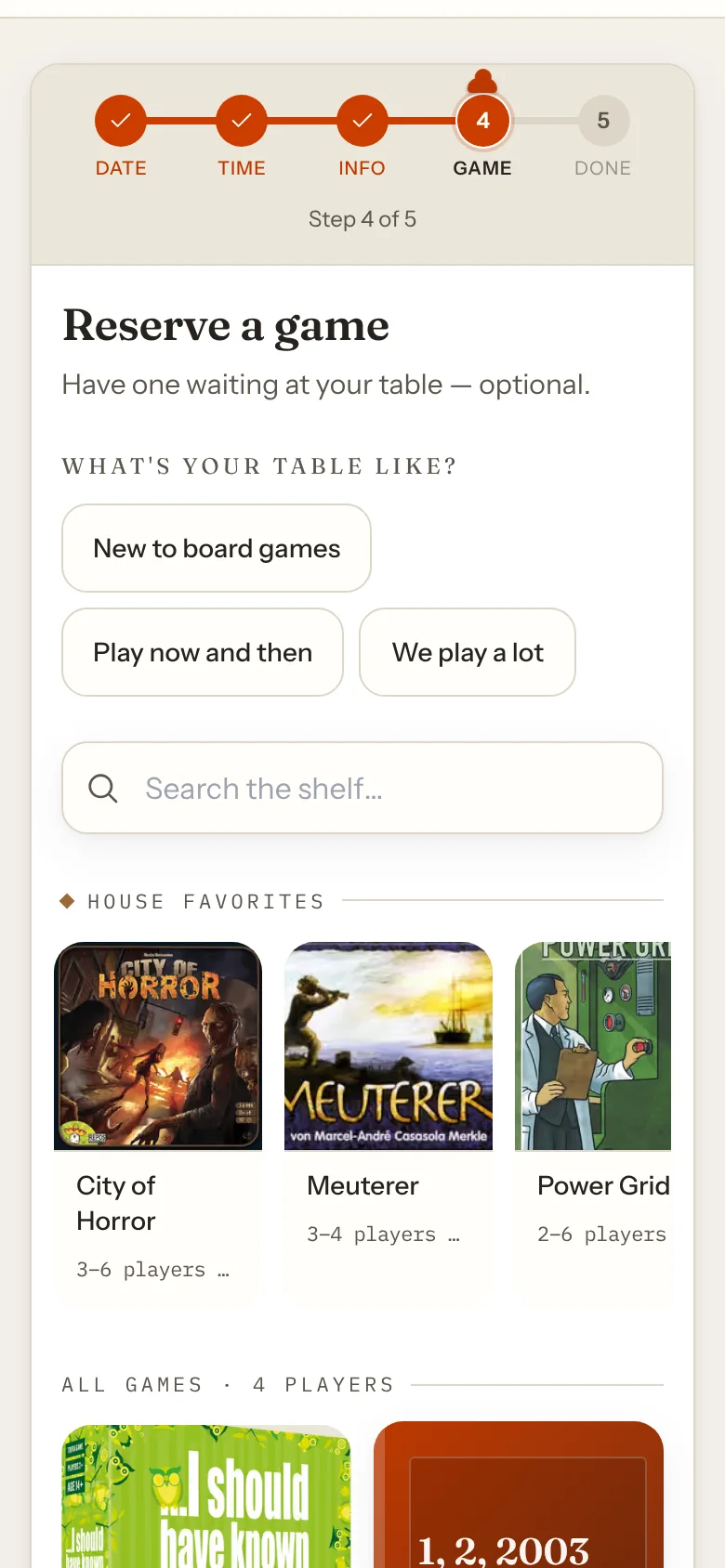
Guests book a table and, if they like, the game they are coming for.
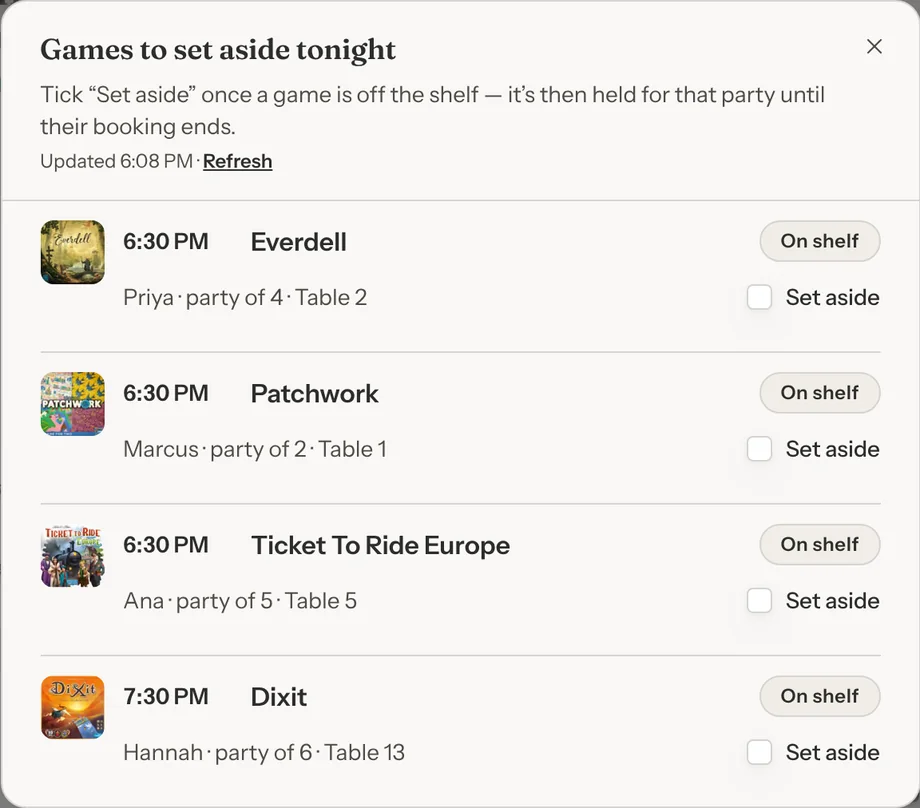
GameLedger gives each party a table that fits them, and holds a reserved game against the copies you own. Staff get a list of the games to set aside today.
Guide: Games to Set AsideTwo parties can't be booked onto the same table at the same time.
Guide: Managing bookingsOffer the lengths that suit you, from 15 minutes to 8 hours, or one fixed length. Let a party that needs more room book up to 4 tables at once.
Guide: Booking lengths, buffers and large partiesPhone bookings and walk-ins go into the same book as online ones.
Guide: Managing bookings
Demo café: Spinner & Scone. Game details powered by BGG.
03
One scan at the table, no app
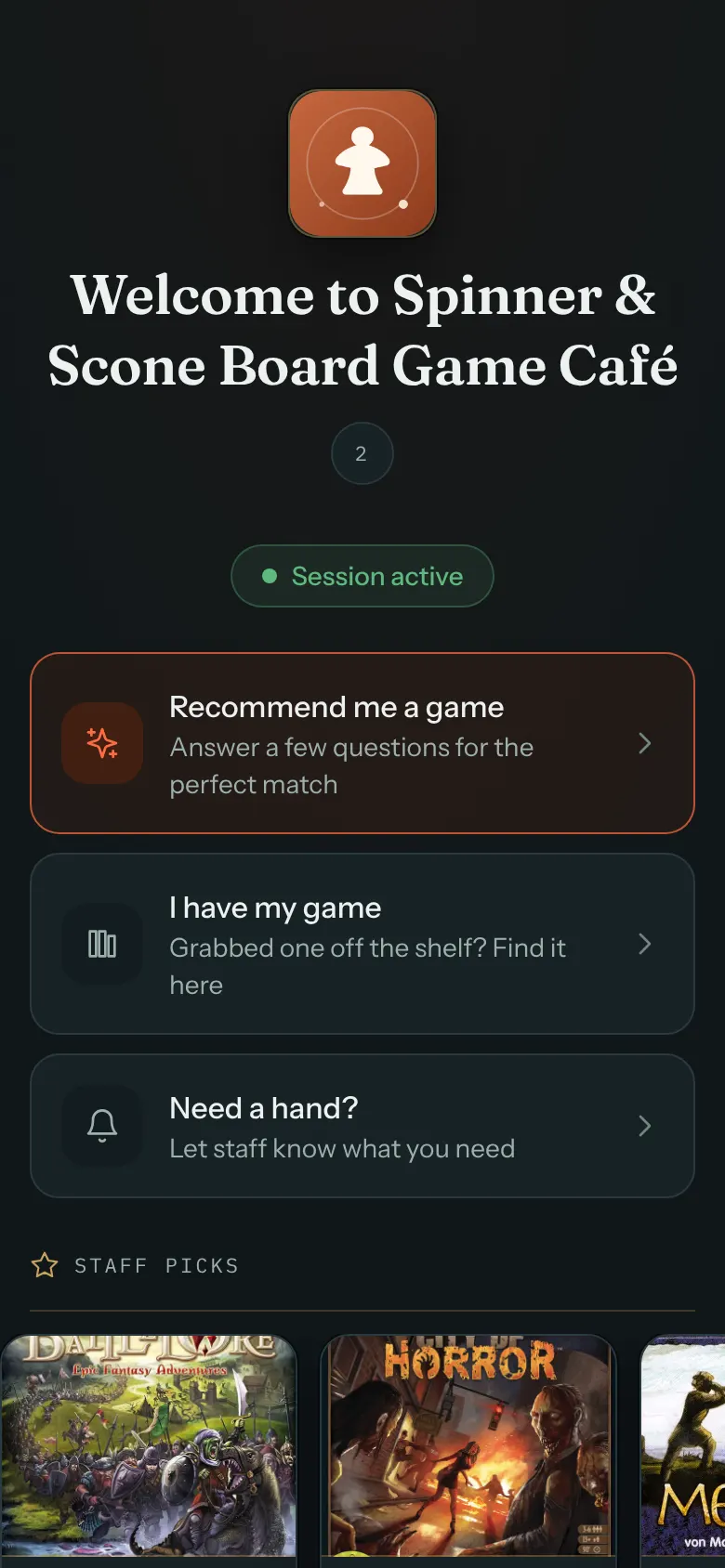
Every table gets its own QR code. Guests scan it with their phone's camera and the table's page opens in the browser, with nothing to download, no account and no login.
Check in
Guests tap Start Session. The table's page then offers a game pick, a search for the game they grabbed, and help from your team.
Guide: Table QR codes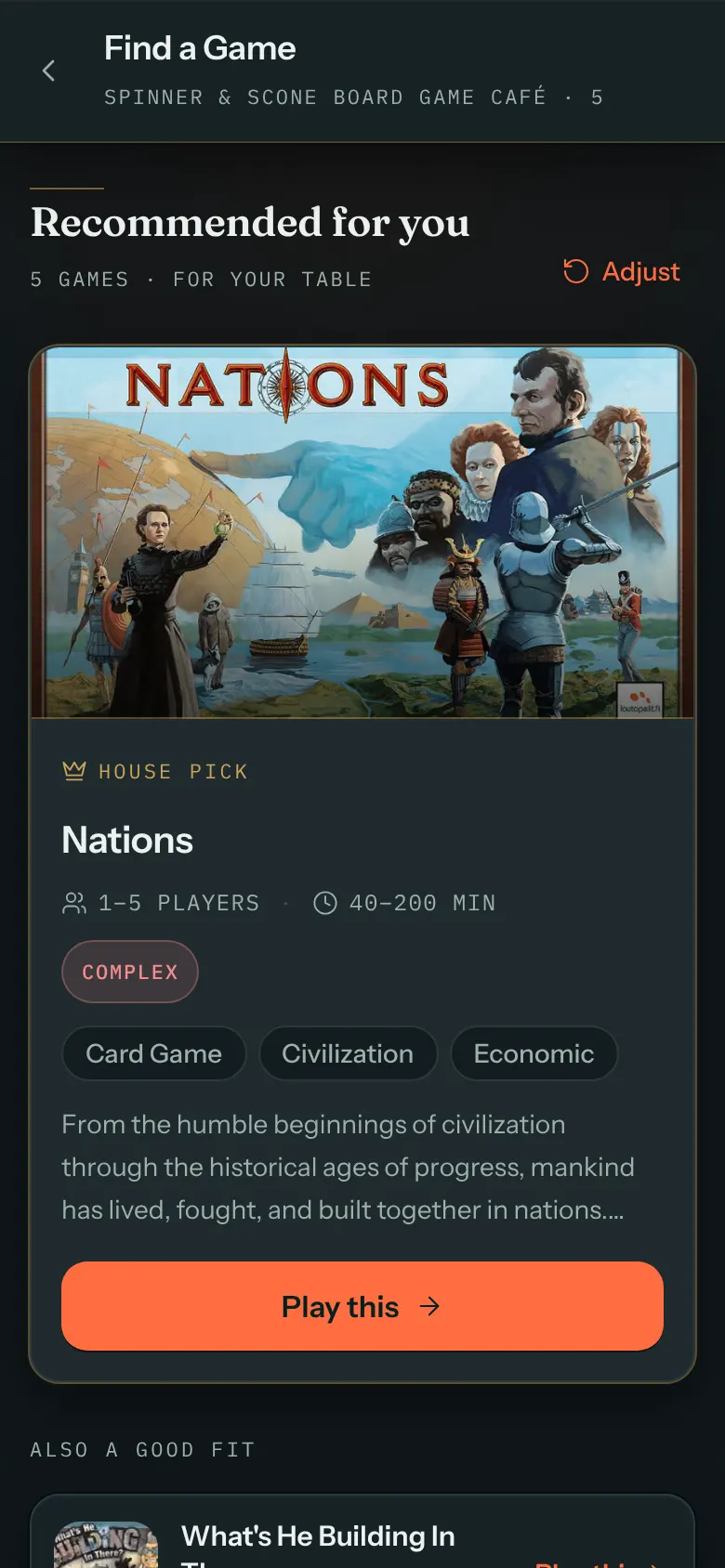
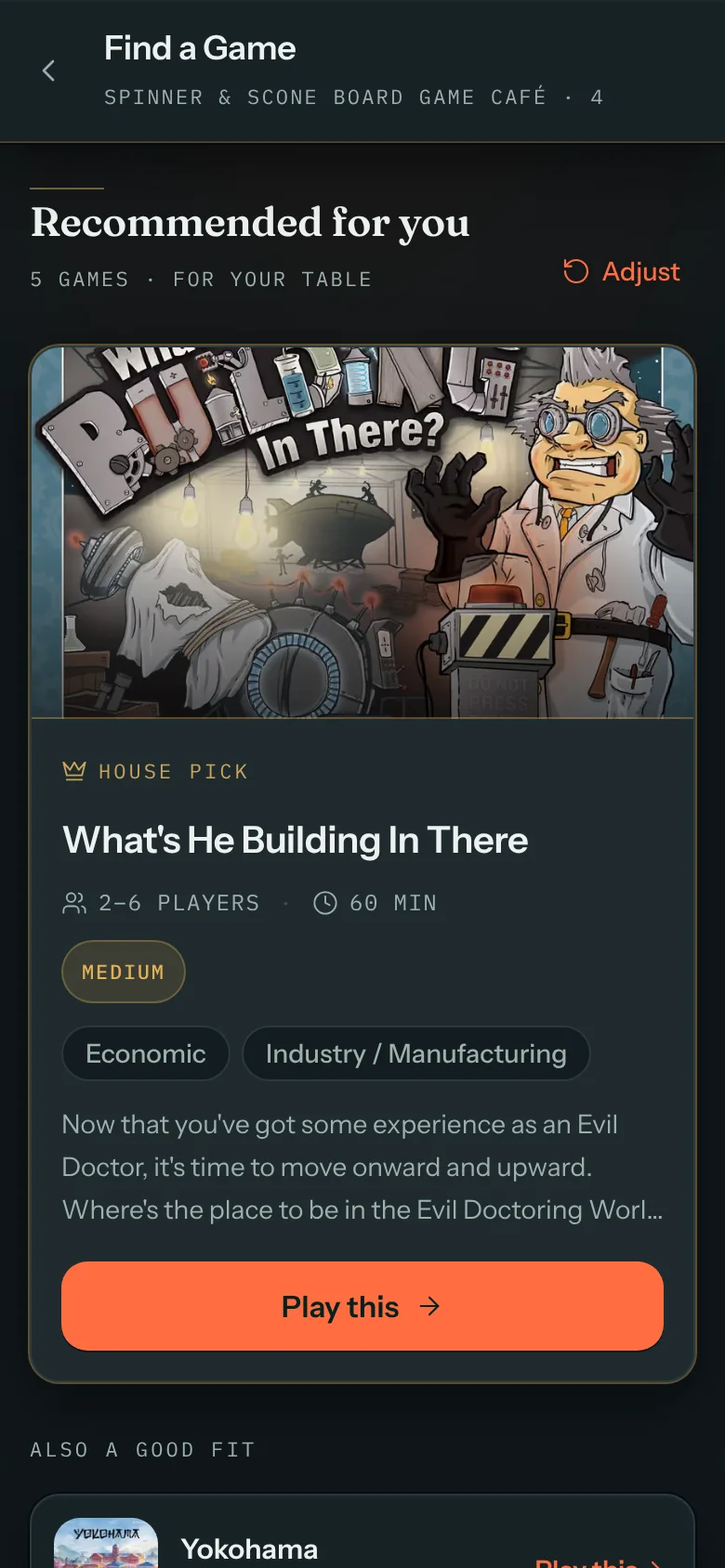
Pick a game
Find a Game asks a few quick questions and suggests up to five games for the group. Play this opens the game's page, and Play this game puts it on their table.
Guide: Set up Find a Game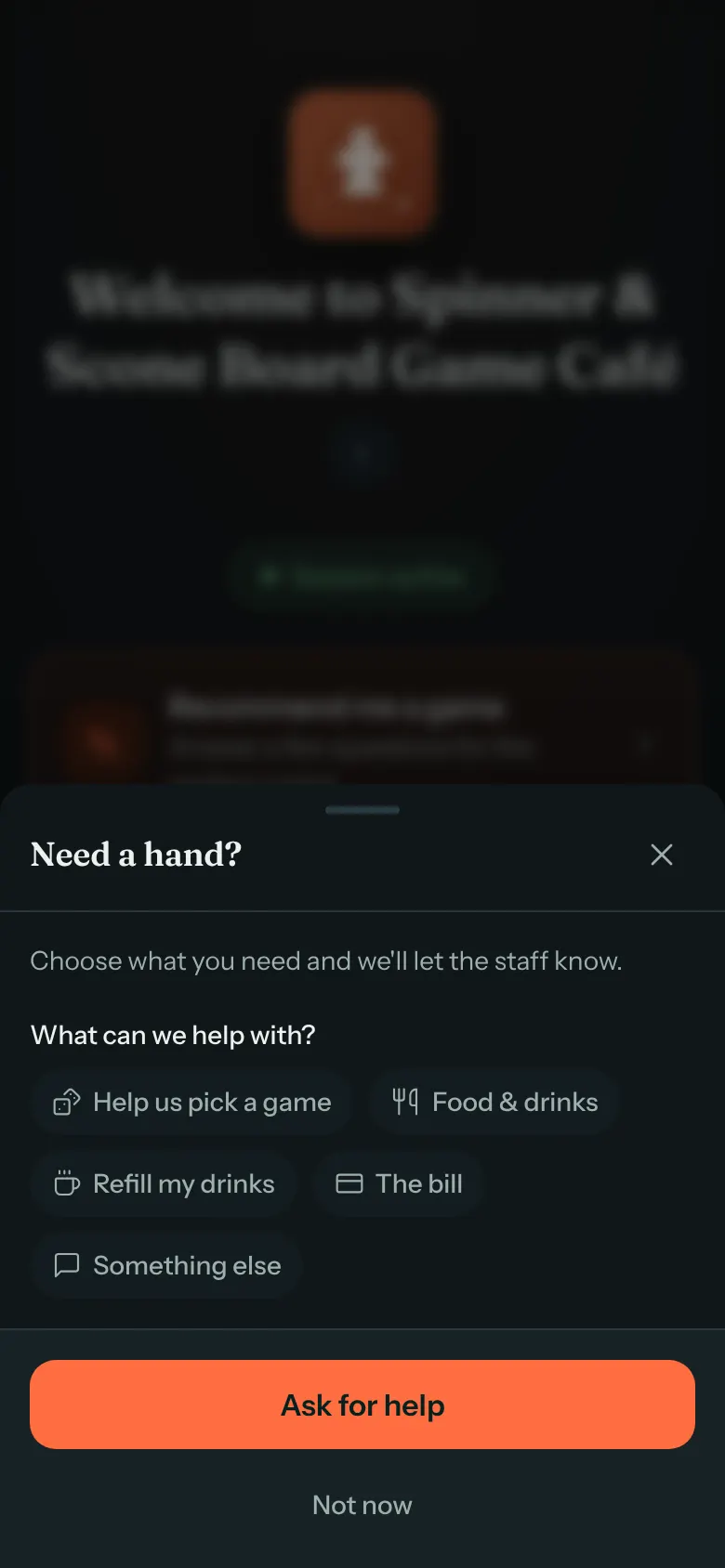
Ask for a hand
Tapping Need a hand? lets guests ask for help choosing, a rules teach, food and drinks or the bill, plus any options you add. Your team sees exactly what was asked.
Guide: Table Help Options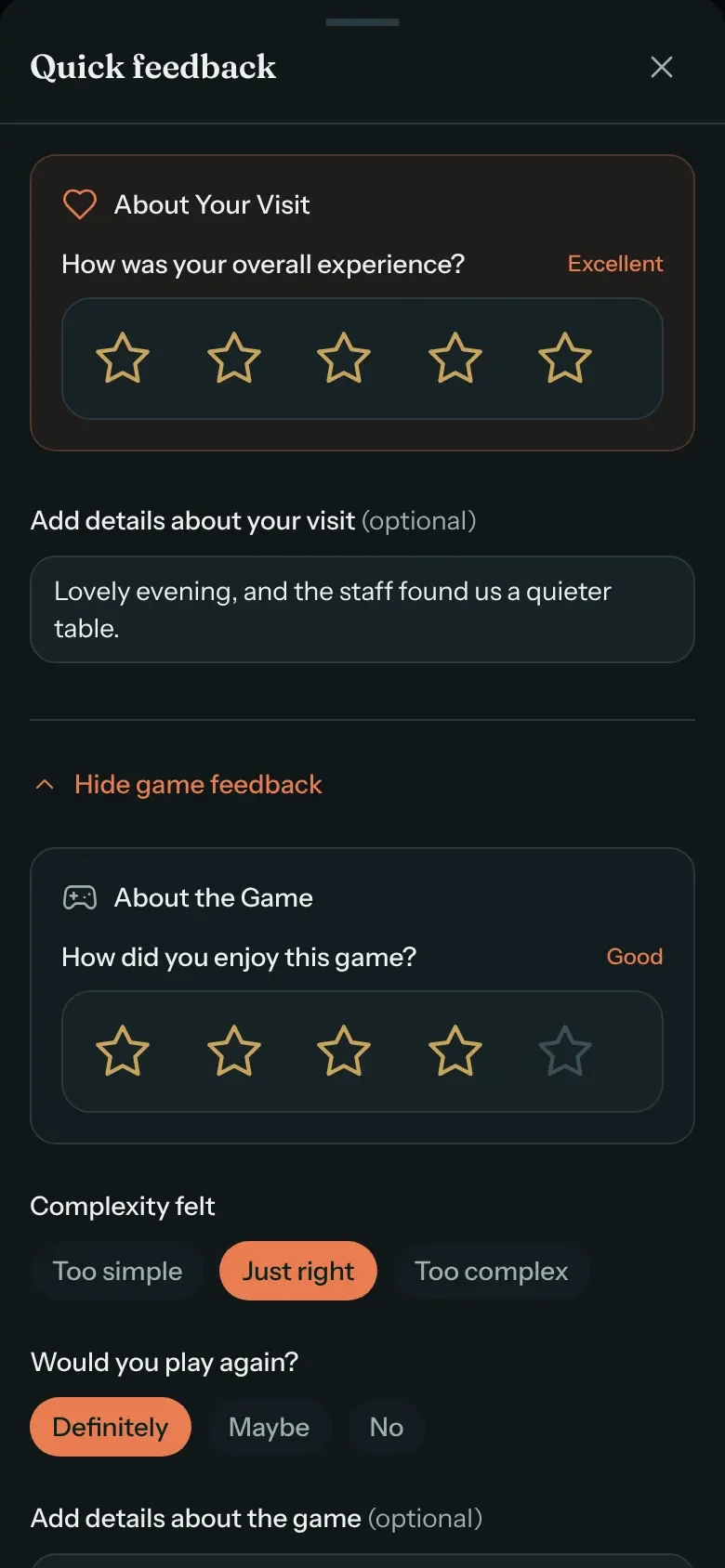
Rate the night
When they check out, guests can rate their visit and the game they played, and flag missing or damaged pieces.
Guide: Guest feedback and reviews
Demo café: Spinner & Scone. Game details powered by BGG.
04
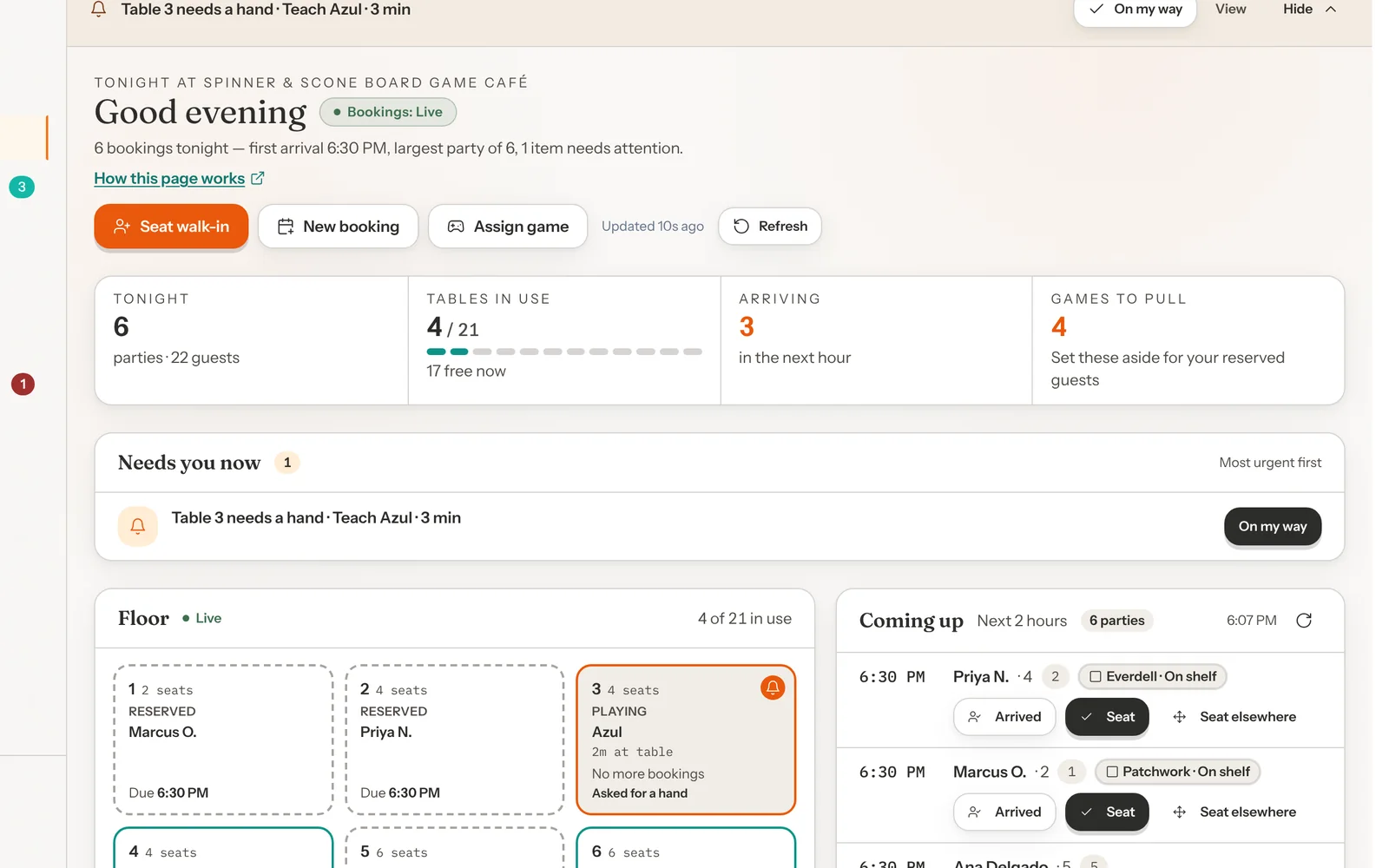
The whole night on one screen
The Dashboard answers what needs you, who is next and where to seat them.
The Floor shows every table: free until its next booking, reserved and due, or playing. Seat a walk-in from the tile.
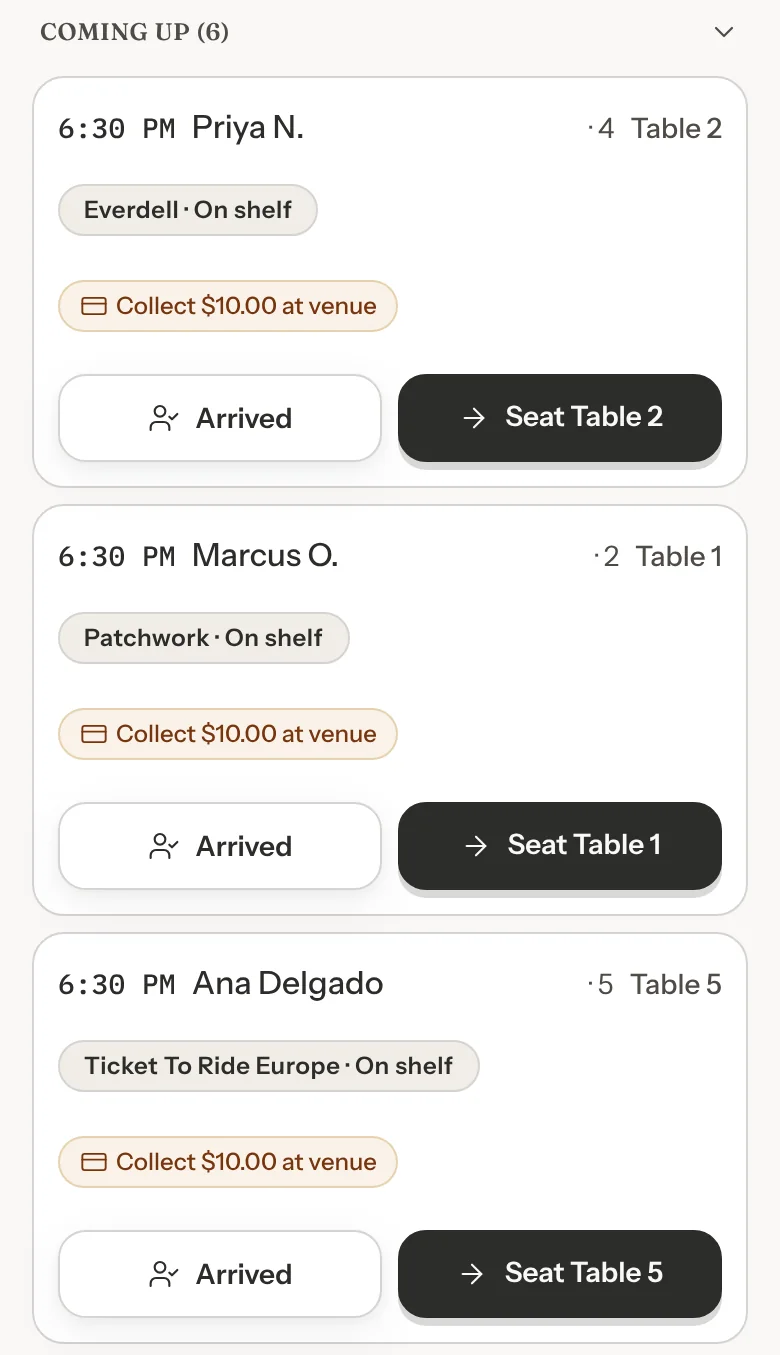
Guide: The Dashboard During ServiceComing up lists the next two hours of parties, with the game each one reserved. A warning shows when a game in play may run into the next booking.
Guide: The Dashboard During ServiceWhen a table asks for help or 30 more minutes, staff see it at the top of every admin page.
Guide: Table Help AlertsRun tonight's parties from your phone: Arrived, Seat, Done, one tap each. Arrived and Done can be undone for five seconds.
Guide: Run Tonight From Your Phone

Demo café: Spinner & Scone. Game details powered by BGG.
Set up the way your café runs
Floor plans
Draw each room at its real size, keep more than one layout for events or weekdays, and print a setup sheet.
Guide: Build your floor planBooking types
Add a Friday game night or a private room as its own type, with its own hours, lengths and seats.
Guide: Setting Up Your Booking TypesHours and closures
Weekly hours, closures and special dates.
Guide: When guests can bookSeating tags
Send a campaign group to the back room or a long game to the big table. Guests never see your tags.
Guide: Send the right groups to the right tablesYour branding
Your logo and colors on your booking page and your games page.
Guide: Your venue page and brandingYour team
Staff accounts that can view or edit each part of GameLedger.
Guide: Team and permissions
On your website, in your country
A Book Now button or a booking form on your own website, with steps for WordPress, Squarespace, Wix and others.
Guide: Add booking to your websiteConfirmation and reminder emails go out on their own.
Guide: Emails your guests getTimes in your café's time zone, and phone numbers saved with their country code.
Guide: When guests can bookExport your bookings, customers and games to CSV whenever you like.
Guide: Managing bookingsDeposits and online payments are available on request.
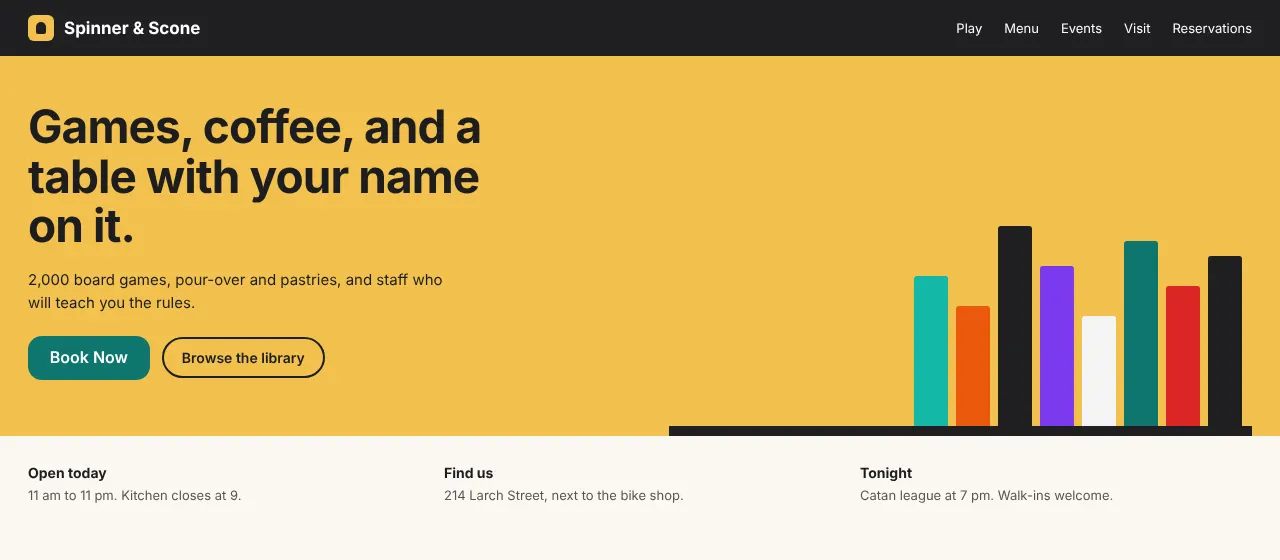
The demo café's own website, with its Book Now button.
Request a demo
See GameLedger on a board game café like yours. Tell us about your venue and we'll be in touch within one business day.
- A 15-minute walkthrough built around your café
- Free while we launch
Questions owners ask
Getting started
Bookings
Your games and your guests
Cost and your data
From the blog
All articles →Ready to see it in your café?
We'll show you your shelf, your bookings and your floor working together.